


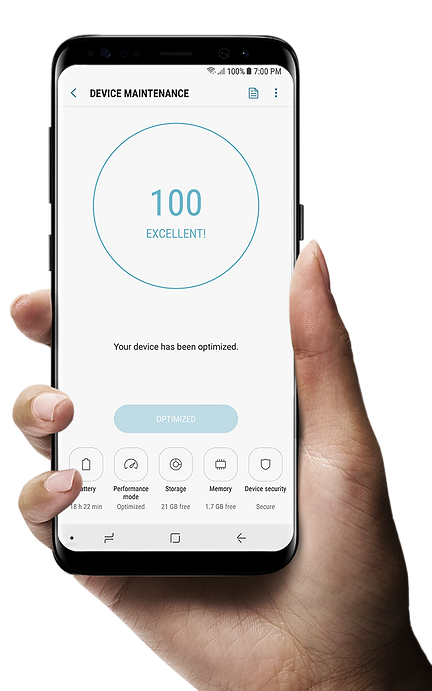
How might we deliver a performance manager that invites every level of user?
The more smart devices can do, the more critical it is to make sure your device is performing at its best. Easier ways to preserve battery life and manage storage, memory, and security threat safety are desired more than ever.
Samsung introduced Smart manager in early 2015 on Galaxy S6, which helps users scan and optimize their smartphone all at once. This reliable, preloaded, malware- and the advertisement-free app has been welcomed by the Galaxy users ever since.
However, its interface was not improved while the Galaxy mobiles evolved remarkably. Instead of an incremental update, we decided to redesign the whole interface to invite every level of users, from novices to experts.
The goal to rebuild the nudging, satisfying, and empowering application took two months, and it was given the new name “Device Maintenance.” The market has welcomed it with positive reviews and feedback ever since it was released.
Smart manager


NEW
Device Maintenance



Beyond dashboard
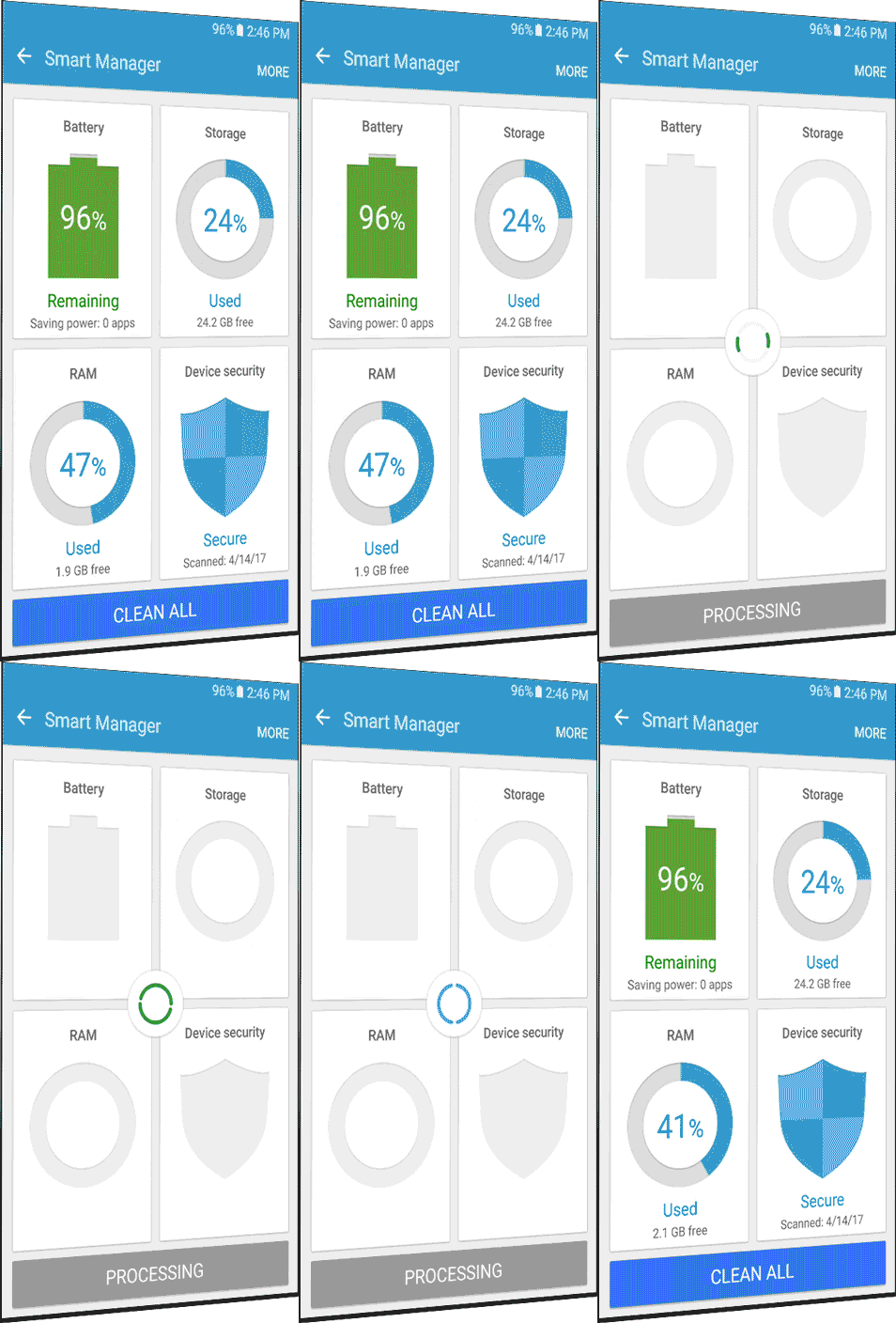
The smart manager, on the left side, worked well as a shortcut to the performance features. Users didn't have to wander around the device settings to figure out the reasons for their phones slowing down. The big “Clean all” button helped to fix issues easily.
Nevertheless, since each icon shows its status separately, not all understood what each status meant for the total performance. Also, the "Clean all" label on the button often scared the users, making them think that it might delete some important data. Moreover, even though they hit the button, poor feedback made it hard to see any difference.
To solve this, we decided to re-design the whole interface to bring a focused and encouraging UI with engaging and informative interaction for everyone, including advanced performance tuning for the power users. Three themes were set based on these propositions.
-
Nudging interface
-
Satisfying feedback
-
Advanced tuning
HIGHLIGHTS | APPROACH
Stay excellent
Our prominent design goal was to nudge every level of user to tap the “Optimize or Fix” button whenever they accessed the app. We tried to make it a habit rather than automating it, as there are cases where users would rather use the device or app despite the system degradation.
Score system
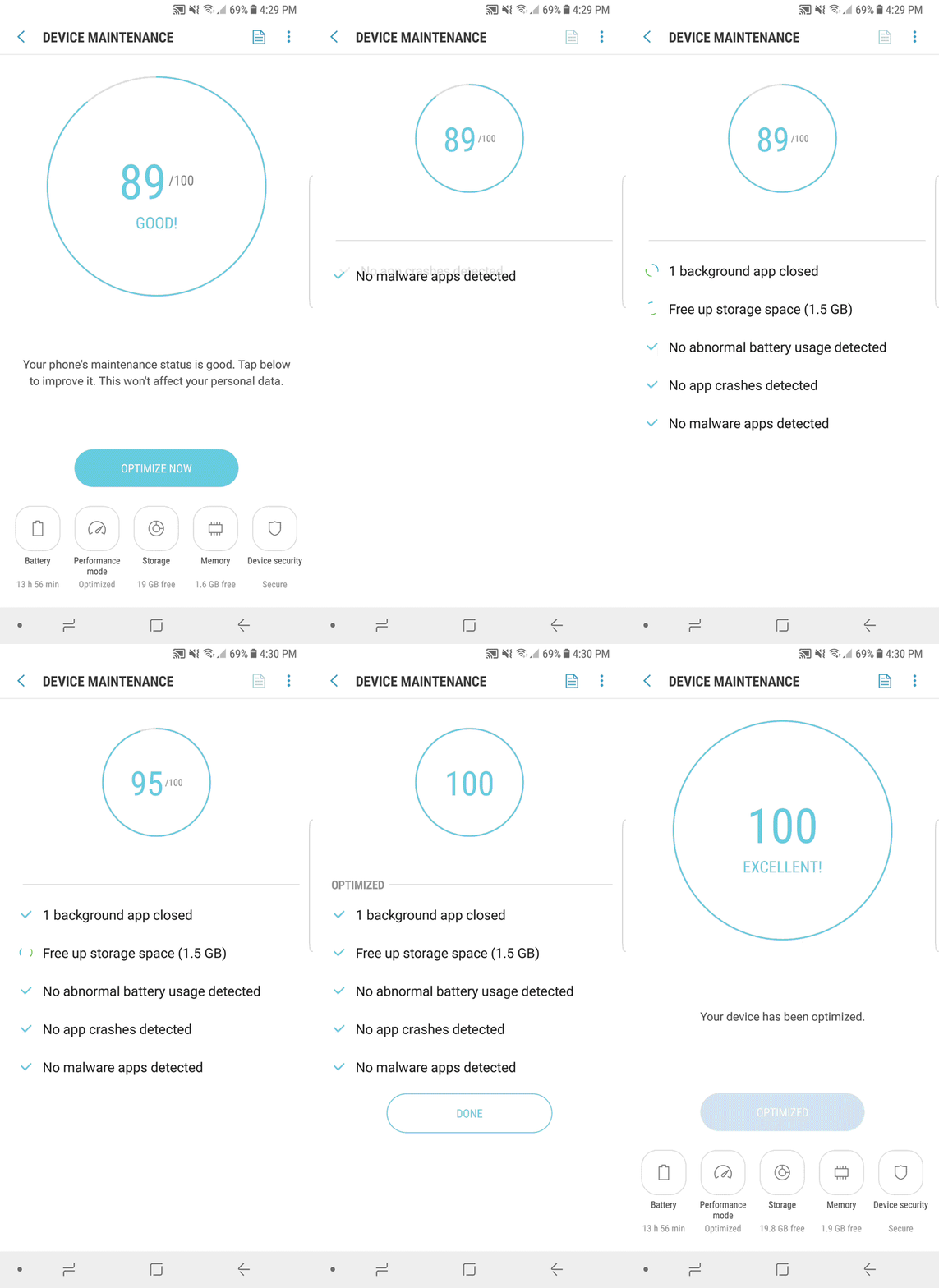
After numerous iterations, we were able to create a new interface that fulfilled our goal. The way to make sure that users would "Fix" it was to show the status in a score, like a game and put a clear action button below. This helped users review the status at a glance and nudged people to keep the score at its highest.
Clear and focused layout
In addition, to help the users focus more on the score and the action button, we placed the feature icons at the bottom of the screen. Each icon still displays the status info and a badge with color comes on when an issue occurs.
Poor
Moderate

Excellent
HIGHLIGHTS | NUDGING INTERFACE
HIGHLIGHTS | SATISFYING FEEDBACK

NEW

Simple, engaging, informative interaction
Lack of feedback
In fact, the Smart manager does a lot more than what it looks like. The list below summarizes the tasks that it monitors and helps to fix if any issues occur. Nevertheless, one of the reasons why it was perceived merely as a shortcut or dashboard was because it previously did not show these details during or even after the process. It monitors:
• Background running apps
• Abnormal battery usage
• Detect App crashes
• Junk files in the storage
• Memory usage
• Malware apps
Animated information
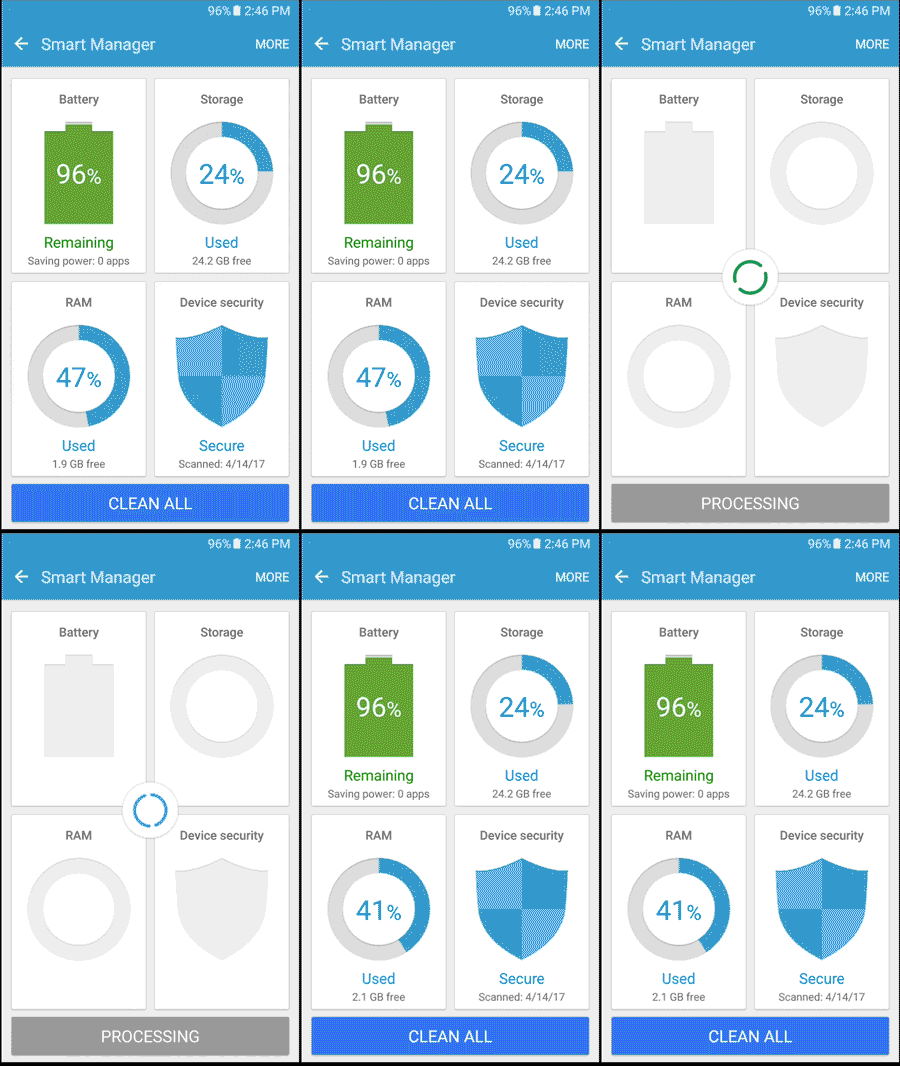
We solved this issue by displaying the detailed tasks as part of the progress animation. Also, we added a confirm phase at the end where users were offered enough time to review the results.
This seamless and informative interaction helped the users feel that the process was shorter and gave them the satisfaction of seeing a significant difference in the score at the end of the optimization.


More control over performance & power
Performance modes
This new feature enables users to allocate their device resources to a specific usage such as games, videos, or music.
Power saving modes
The power saving modes under the battery menu have also been completely re-designed to satisfy both beginners and experienced users.
HIGHLIGHTS | ADVANCED TUNING

“
It's much easier to use for everyday users - even for those who don't know what RAM on their smartphone actually means.”
Camila Rinaldi | ANDROID PIT